Payroll
Manage employee payroll processing, settings, allowances, deductions, and approval workflows.
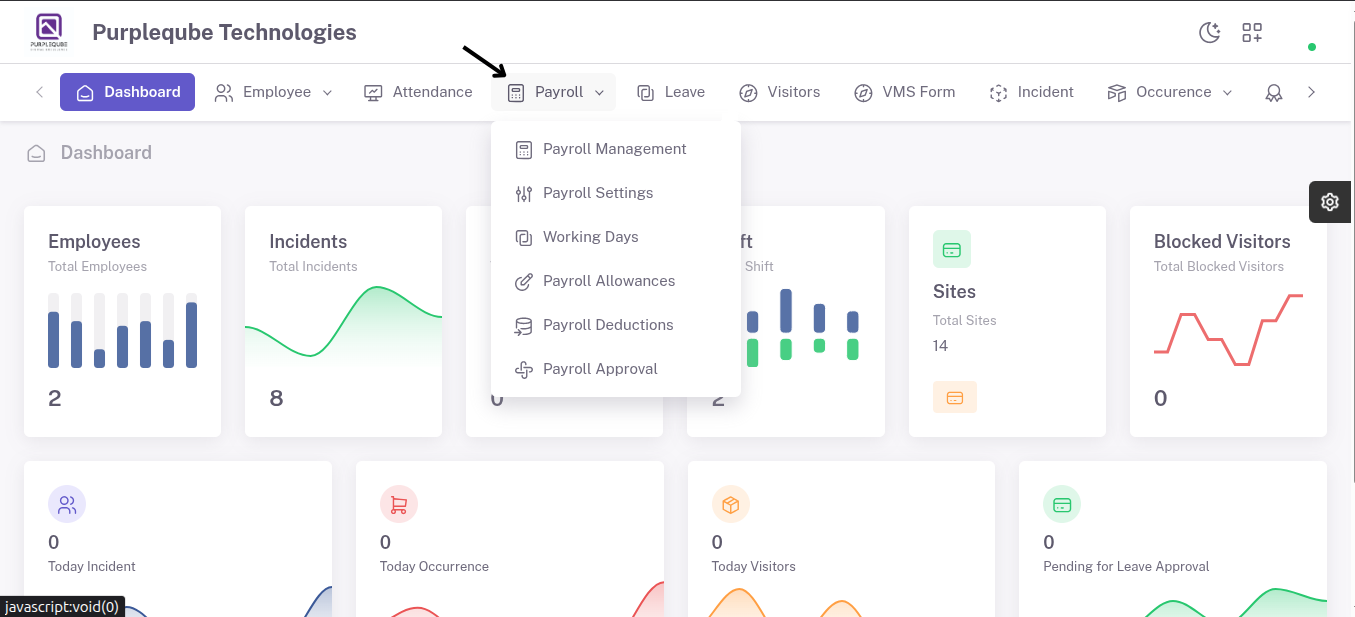
The Payroll module enables users to manage employee payroll processing, payroll configurations, allowances, deductions, working days, and approval workflows. The module consists of six sub-sections:
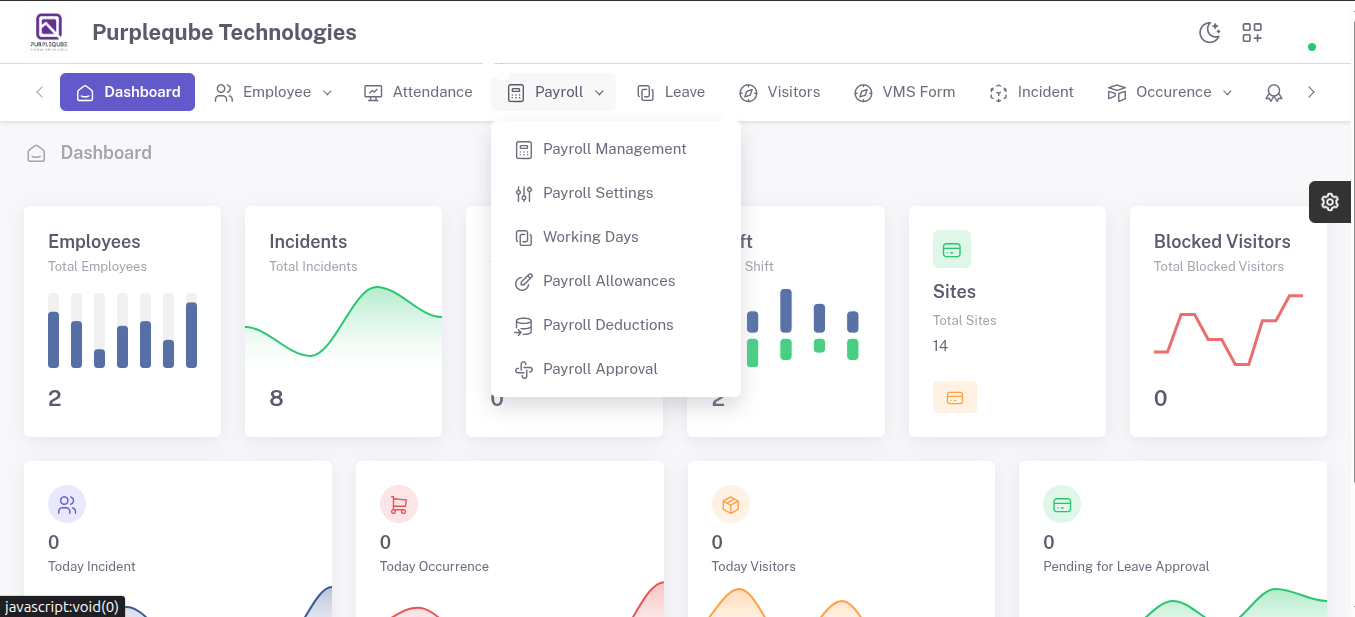
4.1 Payroll Management
The Payroll Management section allows users to view and manage employee payroll records.
Payroll List
The payroll list displays the following information:
- EMP ID – Unique identifier assigned to the employee.
- EMP NAME – Name of the employee.
- EMPLOYMENT TYPE – Employee classification (e.g., Full-Time).
- MONTH YEAR – Payroll month and year.
- NET SALARY – Final salary amount payable to the employee.
- STATUS – Current payroll status (Active).
- ACTION – Options to edit or delete payroll records.
 Payroll-payroll list.png)
Download Excel Payroll
Users can download payroll data in Excel format.
- Click Download Excel Payroll tab.
- Enter Salary From Date and Salary To Date.
- Select the Approved By approver from the dropdown.
- Click Sample Download to download a sample template for reference.
- Click Submit to generate and download the payroll report.
 Payroll- xl down.png)
Generate Payroll
The payroll generation feature allows users to upload payroll data and process payroll records.
- Click Generate Payroll tab.
- Upload the completed payroll Excel file (.xlsx).
- Click Submit.
- The system processes the uploaded data and displays the upload result.
 Payroll-Managment-generate payroll.png)
4.2 Payroll Settings
The Payroll Settings section contains payroll configuration parameters used throughout the payroll process.
 Payroll-Payroll Settings.png)
Features
- View existing payroll settings (OT/HR, PH/HR, REST/HR, ECF, LOAN, OTHER).
- Click the edit icon to modify and update payroll configurations.
- Save changes to apply updated payroll settings.
 Payroll Settings-List.png)
4.3 Working Days
The Working Days section is used to manage standard working day configurations.
 Payroll-Working Days.png)
Working Days List
The list contains:
- WORKING DAYS – Working days configuration (e.g., 5 Days Week, 5.5 Days Week, 6 Days Week, Office Hours).
- DESCRIPTION – Details or remarks about the configuration.
- STATUS – Active or inactive status.
- ACTION – Edit or Delete options.
 Payroll-working days page.png)
Add Working Days
 Payroll-working days-add working days.png)
To create a new working day configuration:
- Click Add Working Days tab.
- Enter the Working Days value (e.g., 4).
- Enter the Description (optional).
- Click Submit.
- A success message "Working Days Created" will appear, and the new record is added to the working days list.
 Payroll- created successfully.png)
4.4 Payroll Allowance
The Payroll Allowance section manages employee allowances that are included in payroll calculations.
 Payroll-Payroll Allowance.png)
Allowance List
The list displays:
- ALLOWANCE NAME – Name of the allowance (e.g., Incentive, Bonus, Meal Allowance, Transport Allowance).
- AMOUNT – Allowance value.
- STATUS – Active or inactive status.
- ACTION – Edit or Delete options.
 Allowance page.png)
Add Allowance
 Allowance page - Add.png)
To create a new allowance:
- Click Add Allowances tab.
- Enter the allowance details.
- Click Submit.
- A success message "Payroll Allowances Created" will appear, and the allowance is added to the allowance list.
 Allowance-add success.png)
4.5 Payroll Deduction
The Payroll Deduction section manages deductions applied during payroll processing.
Deduction List
 Payroll-Payroll Deduction.png)
The list displays:
- DEDUCTION NAME – Name of the deduction (e.g., Unpaid Leave).
- AMOUNT – Deduction value.
- STATUS – Active or inactive status.
- ACTION – Edit or Delete options.
 deduction page.png)
Add Deduction
 deduction-add.png)
To create a new deduction:
- Click Add Deductions tab.
- Enter the deduction details.
- Click Submit.
- A success message "Payroll Deductions Created" will appear, and the deduction is added to the deduction list.
 deduction-edit success.png)
4.6 Payroll Approval
The Payroll Approval section manages payroll approvers and approval workflows.
 Payroll-Payroll Approval.png)
Approval List
The list contains:
- APPROVER NAME – Name of the payroll approver (e.g., Dave, Seetha).
- DESIGNATION – Job title or role of the approver (e.g., Director, Manager).
- STATUS – Active or inactive status.
- ACTION – Edit or Delete options.
 approval page.png)
Add Approval
 approval-add page.png)
To add a new payroll approver:
- Click Add Approval tab.
- Enter the Approval Name.
- Enter the Designation.
- Click Submit.
- A success message "Payroll Approval Created" will appear, and the approver is added to the approval list and becomes part of the payroll approval workflow.
 approval-add success.png)